
Anchorage Neighborhood Health Center
<div class="map-popup-ajax" data-site="Anchorage Neighborhood Health Center" data-post="2530">Loading…</div>Nikolski Clinic
<div class="map-popup-ajax" data-site="Nikolski Clinic" data-post="2530">Loading…</div>Peninsula Community Health Services of Alaska
<div class="map-popup-ajax" data-site="Peninsula Community Health Services of Alaska" data-post="2530">Loading…</div>St. George Traditional Clinic
<div class="map-popup-ajax" data-site="St. George Traditional Clinic" data-post="2530">Loading…</div>Willow Community Health Center
<div class="map-popup-ajax" data-site="Willow Community Health Center" data-post="2530">Loading…</div>Instructions
There are two parts to creating markers:
Adding marker data on this page | Adding a marker to the Maps plugin
This Page
- Instructions for adding pins to this page are in the backend of WP and are housed here.
Maps Plugin
- Be sure you are logged into WordPress. If you see a black bar at the top of the page, you are logged in.
- Click here to go to the Alaska map in the Maps area in the left WP Sidebar. (clicking opens new browser tab)
- Click on Markers
- At the top of the sidebar click “+ Add Marker”

- You will see a screen that looks like this:
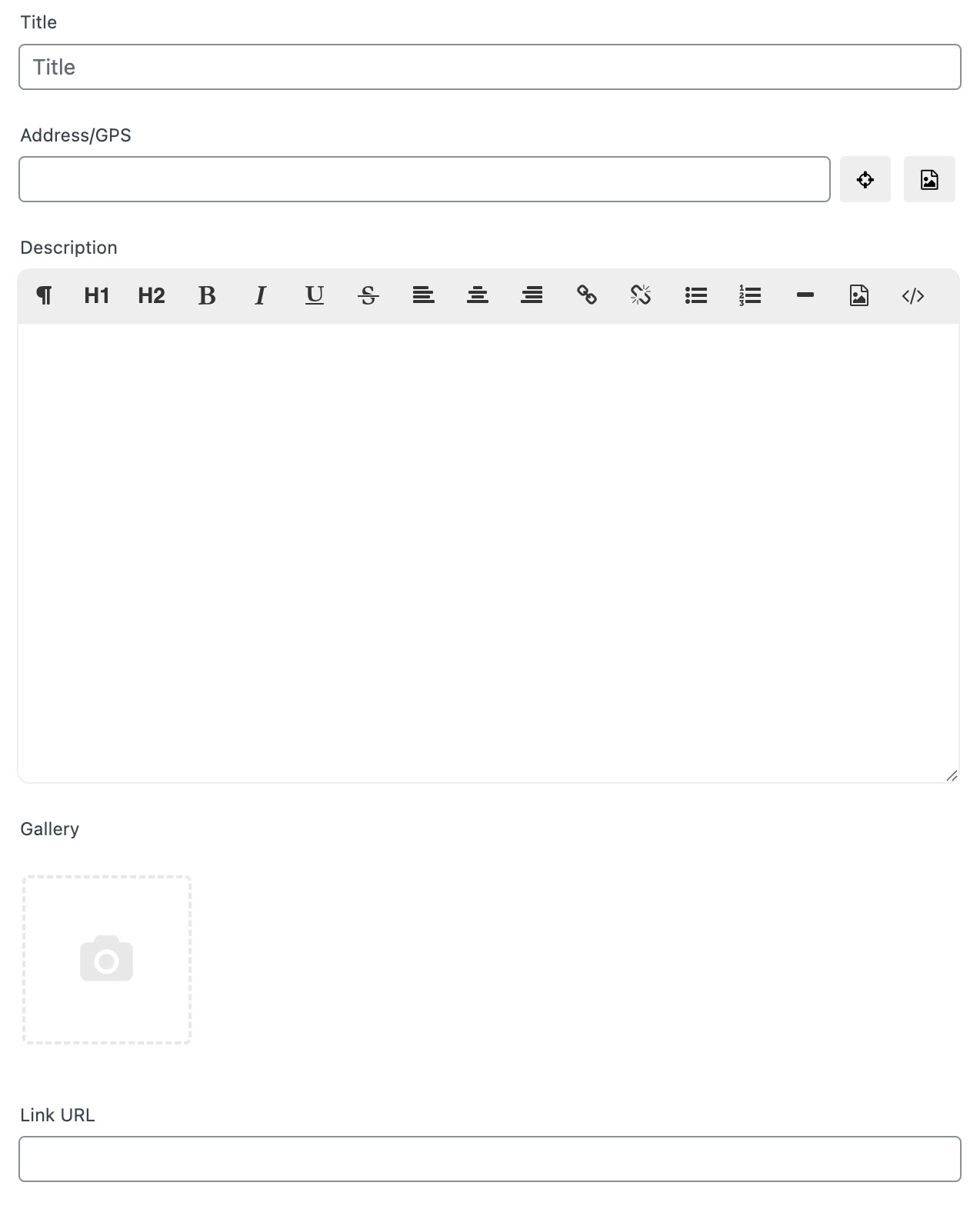
- Add the “Title” it MUST exactly match the title entered in WP backend area.

- Add the FULL address (ex: 123 Main St., Anchorage, AK) to “Address Field”

- Find the marker location in area at the top of this page and click the “Copy Code Above” button for that code snippet.
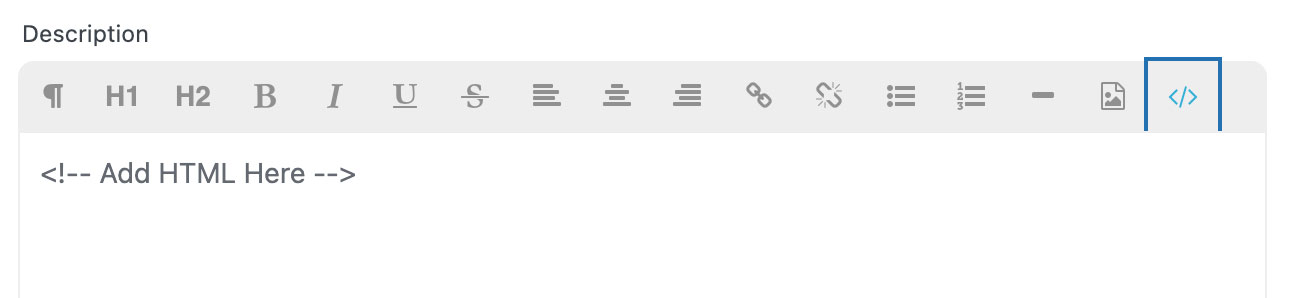
- Click on the HTML code Icon

- Paste the code in the “<!– Add HTML here –>” field
- Add the link to the “Link URL” field

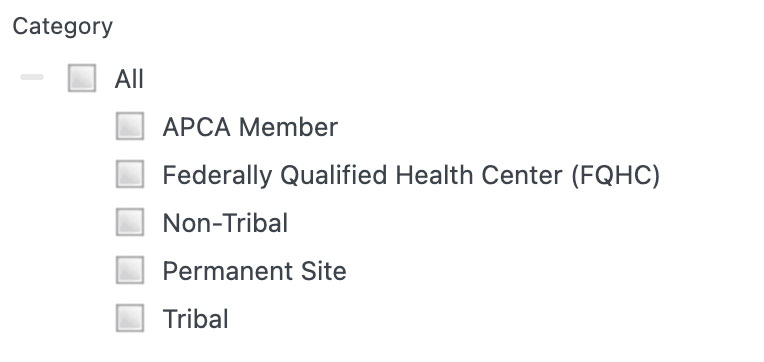
- Scroll down and check the appropriate Categories for this location
- Click the Save Marker button
- Toggle to the front-facing page and check that the marker was added
- Repeat for each marker or do a few at time being sure to check the marker was added and the popup is working